Time Off Blackout Dates
Time Off Blackout Dates allow managers to block specific days from being requested off. When setting a Blackout Date, users see those dates locked in Team Portal with a tooltip explaining the restriction and will be unable to submit time-off requests for those dates.
Time Off Blackout Dates Form Overview
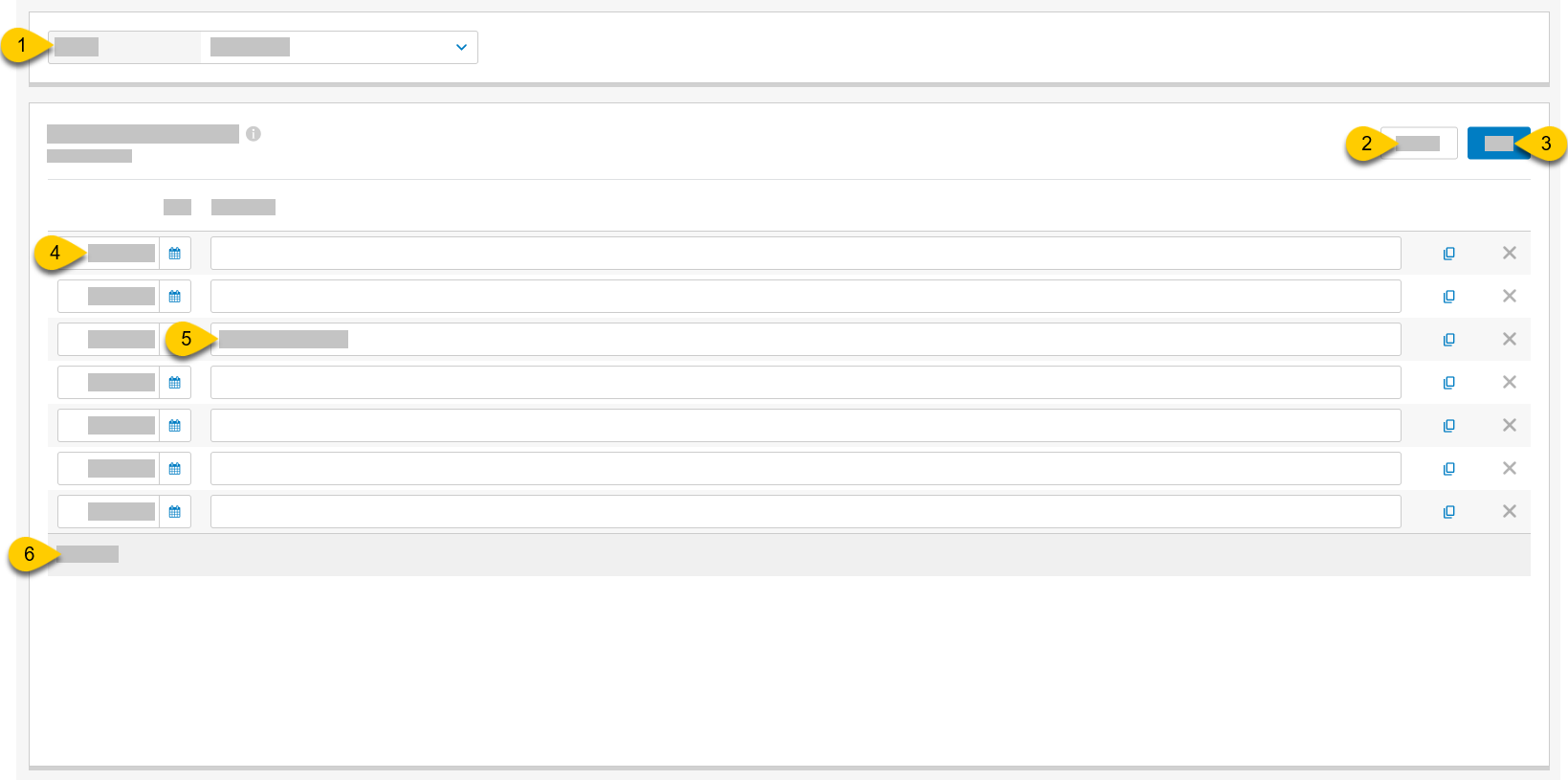 |
1 | Store | From the dropdown, select a store to view the list of associated employees. |
2 | Discard | Discard all unsaved changes. |
3 | Save | Save all updates. |
4 | Date | Type the date for the blackout date or select the calendar icon to open the period / date picker. |
5 | Description | Type a description for the blackout date tooltip. |
6 | Copy | Select to create a copy of the blackout date and description. |
7 | Delete | Select X to delete the blackout date entry. |
8 | Add Item | Add new blackout date. |
Set Blackout Dates
→
To define a Blackout Date:
From the Time Off Blackout Date list, define the following:
Date - Enter the date of the the blackout — OR — select a date from the date picker
Description - Enter a description/reason for the blackout
From the upper-right, select Save.
To add a Blackout Date:
From the bottom of the Time Off Blackout Date list, select + Add Item.
From the upper-right of the Time Off Blackout Date page, select Save.
To copy a Blackout Date:
From the desired Blackout Date line item, select the Copy icon.
From the upper-right of the Time Off Blackout Date page, select Save.
To delete a Blackout Date:
From the desired Blackout Date line item, select the X icon.
From the upper-right of the Time Off Blackout Date page, select Save.