Pricing Updates
→ → → → →
Use Pricing Updates to perform the following:
Function | Description |
|---|---|
Change product price | |
Define product price that is specific to one or more sites | |
Define product pricing rules when certain conditions are met, such as time period or order source. | |
Define pricing rules for child items | |
Import product pricing | |
Export product pricing |
Edit Price
To change the price of a product or modifier:
(Optional) From the upper-right of the Pricing Updates homepage, select Select Sites to filter the product list by site.
From the product list on the Pricing Updates homepage, select the product.
From the Actions dropdown, select Edit Price.
From the Edit Price window, type the new price of the product.
Select Done.
From the upper-right of the Pricing Updates homepage, select Save Changes.
-OR-
From the Save Changes dropdown, select Add Changes to Package.
Tip
To quickly update a product price: In the New Price field on the Pricing Updates homepage, type the new price of the product.
To clear the new price for a product or modifier:
From the product list on the Pricing Updates homepage, select the product.
From the Actions dropdown, select Clear Set Price.
Set Site-Specific Pricing
To define a price for a product or modifier that is specific to one or more sites:
From the product list on the Pricing Updates homepage, select the product.
From the 3-dot menu on the right of the product row, select Set Site Specific Pricing.
From the View and Edit Price form, type the price for each listed site.
-OR-
In the All Sites row, type the price for all listed sites.
Select Save.
From the upper-right of the Pricing Updates homepage, select Save Changes.
-OR-
From the Save Changes dropdown, select Add Changes to Package.
Edit Pricing Rules
To specify how a product is priced when certain conditions are met:
From the product list on the Pricing Updates homepage, select the product.
From the 3-dot menu on the right of the product row, select Edit Pricing Rules.
From the Pricing Rules window, select Add Pricing Rule.
From the Pricing Rule window, define the product pricing rule.
General
From the Pricing Rule form, locate the General section.
In the Name field, type a name for the pricing rule.
Toggle Tax Inclusive to Yes if all applicable taxes are included in the price.
When enabled, tax is not applied to the price when the product is added to an order.
From the Price Adjustment dropdown, select the preferred method for adjusting the standard item price:
Replace – Replace the standard price with a specified price.
Amount - Adjust the standard price by a specified amount.
Percentage - Adjust the standard price by a specified percentage.
From the Adjustment Value field, specify the price / amount/ percentage by which to adjust the standard price.
Roll Up Parent Pricing
From the Roll Up Price dropdown, select the applicable option. The selected option determines how the product price is rolled up into a parent product price.
Option | Description |
|---|---|
Do Not Roll Up | Do NOT roll up the price to the parent product price. |
Roll Up After Tax | Roll up the price to the parent product price AFTER tax is applied. |
Roll Up Before Tax | Roll up the price to the parent product price BEFORE tax is applied. |
Order Sources
From the Order Sources page of the Pricing Rule form, identify order sources (e.g. Mobile, Website) eligible for the pricing rule.
From the Order Sources dropdown, select the preferred option:
All Order Sources - Pricing rule is NOT restricted by order source.
Only the Following - Only apply pricing rule to specific order sources. Select Add Order Sources to select the order sources eligible for the rule.
Time Periods
From the Time Periods section of the Pricing Rule form, identify time periods eligible for the pricing rule.
From the Time Periods dropdown, select the preferred option:
All Time Periods - Pricing rule is not restricted by time period.
Only the Following - Only apply pricing rule to specific time periods. Select Add Time Periods to select the time periods eligible for the rule.
Note
If an order is entered during one time period and tendered in another, the product pricing for the time period when the order was entered is used.
Price Points
From the Price Points section of the Pricing Rule form, identify price points eligible for the pricing rule.
From the Price Points dropdown, select the preferred option:
All Price Points - Pricing rule is not restricted by price point.
Only the Following -Only apply pricing rule to specific price points. Select Add Price Points to select the price points eligible for the rule.
Destinations
From the Destinations page of the Pricing Rule form, identify order destinations (e.g. Eat In, Carry Out) eligible for the pricing rule.
From the Destinations dropdown, select the preferred option:
All Destinations - Pricing rule is NOT restricted by destination.
Only the Following - Only apply pricing rule to specific destinations. Select Add Order Destinations to select the destinations eligible for the rule.
Save Pricing Rule
To save the pricing rule and return to the Pricing Updates homepage:
From the lower-right of the Pricing Rule form, select Add Pricing Rules.
The pricing rule is added to the list of rules in the Pricing Rules section.
Select and drag the control to the left of each rule to sort the list by lowest-to-highest priority (where the rule at the top of the list has the highest priority).
From the lower-right of the Pricing Rules form, select Done.
From the upper-right of the Pricing Updates homepage, select Save Changes.
-OR-
From the Save Changes dropdown, select Add Changes to Package.
Edit Child-Item Pricing Rules
→ → → → →
To define a child item pricing rule for a product:
From the product list on the Pricing Updates homepage, select the product.
From the 3-dot menu on the product row, select Edit Child-Item Pricing Rules.
From the Child-Item Pricing Rules window, select Add Child-Item Product Pricing Rule.
From the Child-Item Pricing Rule form, define the pricing rule.
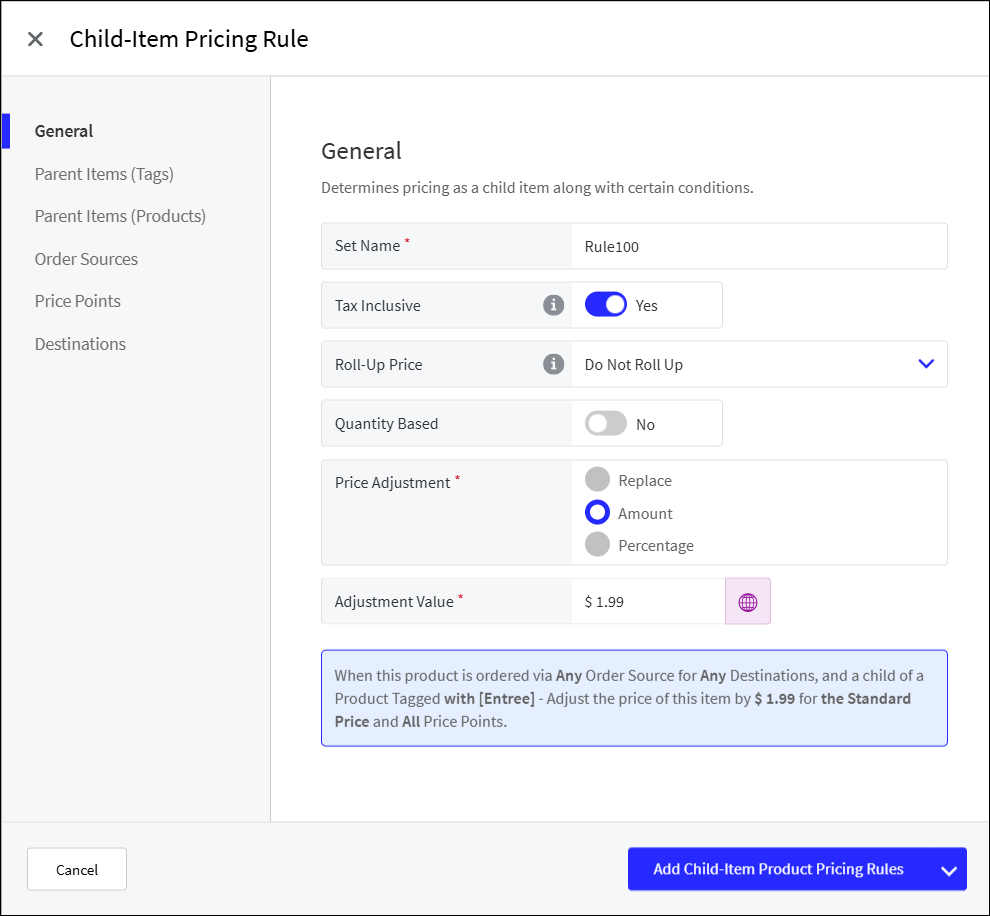
General Pricing Settings
From the General page of Child-Item Pricing Rule, define the following:
Setting | Description |
|---|---|
Set Name | Name for price rule |
Tax Inclusive |
|
Roll-Up Price | |
Quantity Based | |
Price Adjustment | Select the preferred price adjustment option:
|
Adjustment Value | Value by which standard price is replaced or adjusted |
Choose Products
From the Child-Item Pricing Rule form, locate the Choose Products section.
From the Select Product dropdown, select the preferred option:
Option
Description
Specific Product
Define the price of the product when it is a child of one or more specific products.
Group of Products (tags)
Define the price of the product when it is a child of any product tagged with one or more specific tags.
Tags and Specific Products
Define the price of the product when it is a child of one or more specific products OR any product tagged with one or more specific tags.
Select the applicable products and/or tags for this child item pricing rule. The available fields are determined by the option selected in the previous step.
From the Individual Products dropdown, select the specific products.
When the product is ordered as a child of any of the selected products, the child item pricing rule is applied.
From the Parent Tag(s) dropdown, select the tags.
Every product associated with the selected tags is an eligible parent item. When the product is a child of any of these items, the child item pricing rule is applied.
Pricing
From the Child-Item Pricing Rule form, locate the Pricing section.
Toggle Tax Inclusive to Yes if all applicable taxes are included in the price.
When enabled, tax is not applied to the price when the product is added to an order.
Toggle Quantity Based to Yes to enable the Pricing by Quantity feature.
When enabled, the price of the product is determined by the quantity that is added to the order.
For example, one (1) serving of Garlic Bread is provided free with an order, but each additional serving is priced at $0.99.
For additional instructions, skip steps 4-5 and see Pricing by Quantity below.
From the Price Adjustment dropdown, select the preferred method for adjusting the standard item price:
Replace – Replace the standard price with a specified price.
Amount - Adjust the standard price by a specified amount.
Percentage - Adjust the standard price by a specified percentage.
From the Adjustment Value field, specify the price / amount/ percentage by which to adjust the standard price.
Note
When Quantity Based is toggled Yes, the Price Adjustment and Adjustment Value fields are not available.
Quantity Based Pricing
The following describes how to set up a pricing rule that is determined by the quantity of the product ordered at the POS.
From the General page of Child-Item Pricing Rule, define the following:
Setting | Description |
|---|---|
Quantity Based | Toggle Yes to enable the Quantity Based Pricing feature. |
Associated Children | |
Identify other products eligible for the pricing rule when ordered as a child item. | |
Child Products | Select specific products that are eligible for the pricing rule. |
Child Tag(s) | Select product tags for the pricing rule. Every product associated with the selected tags is eligible for the rule. |
Pricing by Quantity | |
Select Add Range to define a new pricing by quantity range. Define the following: | |
Start | Lowest product quantity in range |
End | Highest product quantity in range |
Price Adjustment | Select the preferred price adjustment option:
|
Value | Value by which standard price is replaced or adjusted |
Roll Up Parent Pricing
From the General page of Child-Item Pricing Rule, define the following:
Setting | Description |
|---|---|
Roll-Up Price | Select method to roll up child price into its parent price:
|
Use Alternative Item Price | Toggle On to use price of another item when rolling up price. The price of the alternative item is rolled up into the parent price. The price difference between the child item and the alternative item is displayed as the child item price. |
Select Alternative Item | Select the alternative item used to determine the roll up price. |
Conditions
From the Conditions section of the Child-Item Pricing Rule form, define conditions for the pricing rule:
Condition | Description |
|---|---|
Destinations | From the dropdown, select the preferred option:
|
Order Sources | From the dropdown, select the preferred option:
|
Price Points | From the dropdown, select the preferred option:
|
Save & Close the Record
To save the pricing rule and return to the Pricing Updates homepage:
From the lower-right of the Child-Item Pricing Rule form, select Add Child-Item Product Pricing Rules.
The pricing rule is added to the list of rules in the Child-Item Pricing Rules section.
Select and drag the control to the left of each rule to sort the list by lowest-to-highest priority (where the rule at the top of the list has the highest priority).
From the lower-right of the Child-Item Pricing Rules form, select Done.
From the upper-right of the Pricing Updates homepage, select Save Changes.
-OR-
From the Save Changes dropdown, select Add Changes to Package.